| English | 日本語 | 简体中文 | 繁體中文 | Português (Brasil) | Español | Deutsch |
This package uses version 0.2.1. See the release record for tested environments and store status.
| Field | Draft / current status |
|---|---|
| Listing name | tabuchan |
| Version | 0.2.1 |
| Documentation / listing languages | English, Japanese, Simplified Chinese, Traditional Chinese, Brazilian Portuguese, Spanish, and German. English is the base language. Saved Dashboard languages remain unverified |
| Extension UI languages | Japanese when Chrome’s display language is Japanese; English otherwise. Documentation languages do not expand UI support |
| Proposed category | Functionality & UI, based on the current official category covering tab/shortcut management. The saved Dashboard value remains unverified |
| Summary | Switch to recent tabs with a tap. Hold to browse, search, and select tabs in the current window. |
| Homepage / support | Usage instructions. The publisher must decide the support channel |
| Visibility / target countries | To be decided by the publisher |
| Privacy policy URL | Public URL. Verify that the updated policy is available at this URL before submission. |
tabuchan lets you switch between tabs in the current window using keyboard shortcuts.
With the required modifiers held, tap Back or Forward to switch through a fixed recent-use order. Release a required modifier to make the displayed tab the most recent. Tabs without available shortcuts are skipped by default.
Press Enter in either list, including in search results, or select a tab directly in Chrome to make it the most recent. If it was already in the history, its old entry is removed and the other tabs stay in the same order.
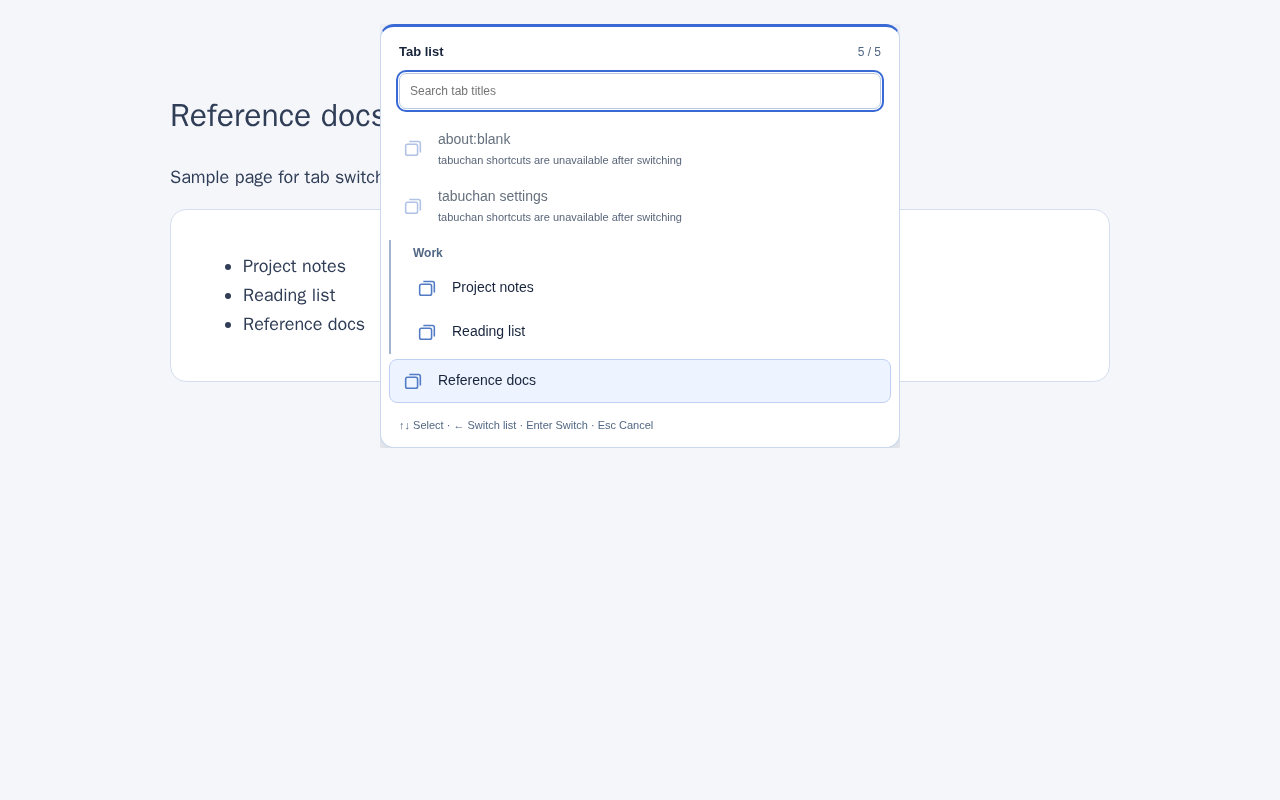
Hold the entire shortcut combination to open a tab list. Use Up and Down to select, Enter to switch, and Esc to cancel. The list stays open after you release the shortcut.
Press Left to switch between recent-use order and actual tab order. The tab-order list preserves tab groups and lets you filter titles independently of the UI language. Separate search terms with spaces. Partial match (the default) finds titles containing every term in any order. Prefix match starts with the first term and finds the others in order, with gaps allowed. Both modes ignore letter case and use Unicode NFC normalization.
You can assign multiple shortcuts per action. The hold duration ranges from 0.2 to 2.0 seconds in 0.1-second steps and defaults to 0.5 seconds. The history limit is 10–30 past tabs, with a default of 10. The list dims tabs with unavailable shortcuts without changing row height. You can still select them with Enter.
On macOS, the default shortcuts are Control + Shift + J for Back and Control + Shift + K for Forward. Other platforms use Alt + Shift + J and Alt + Shift + K. You can record your own combinations in settings.
Shortcuts start inside regular HTTP(S) pages, including iframes. They do not start on Chrome internal pages, the Chrome Web Store, other extensions’ pages, file pages, or the address bar. Restricted tabs can still be selected from a list opened on a regular page.
History and settings are processed and stored locally. Displaying tab favicons may cause image requests to the favicon provider. See the privacy policy for data-handling details.
| Asset | Implementation / preparation status |
|---|---|
| Store icon | icons/tab-128.png, Tabuchan mascot icon, 128×128 PNG |
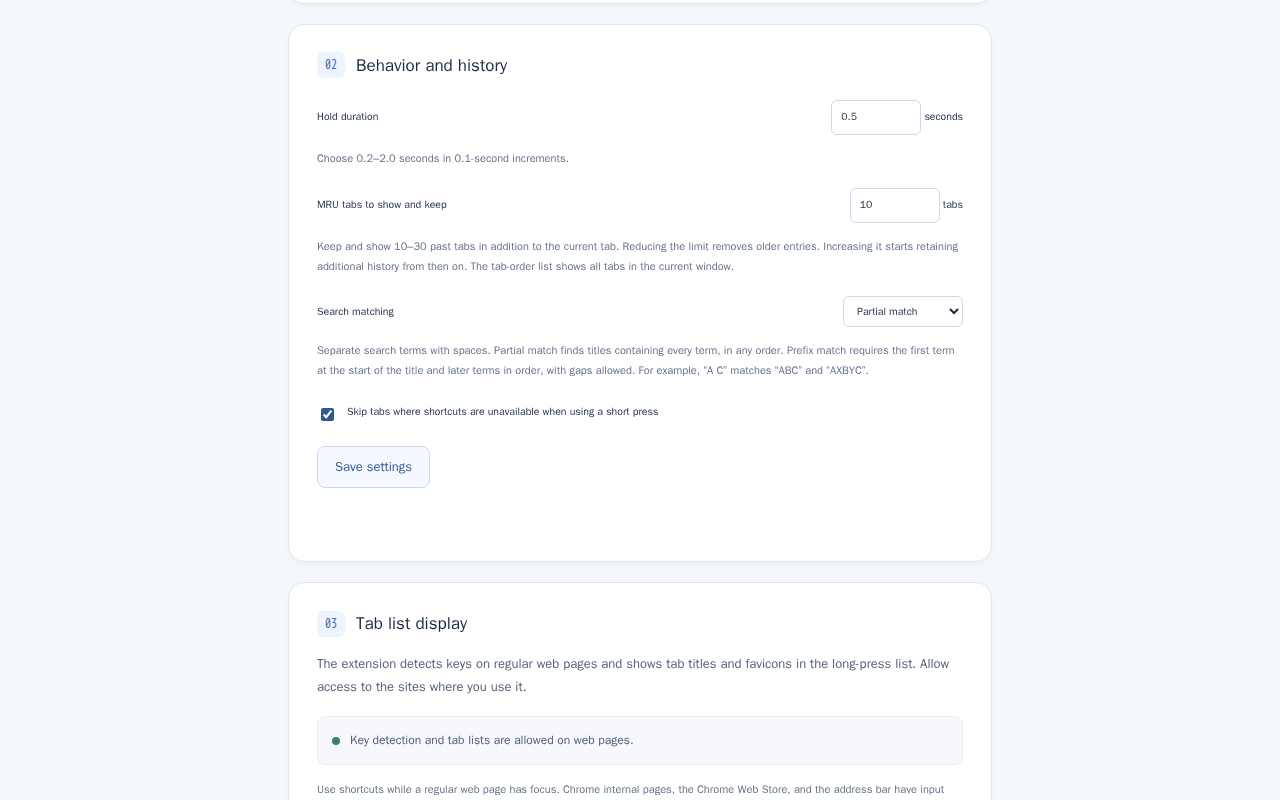
| English settings | options-en-1280x800.png, 1280×800, Default hold duration of 0.5 seconds and search matching settings |
| English tab list | picker-en-1280x800.png, 1280×800, English tab order with sample groups |
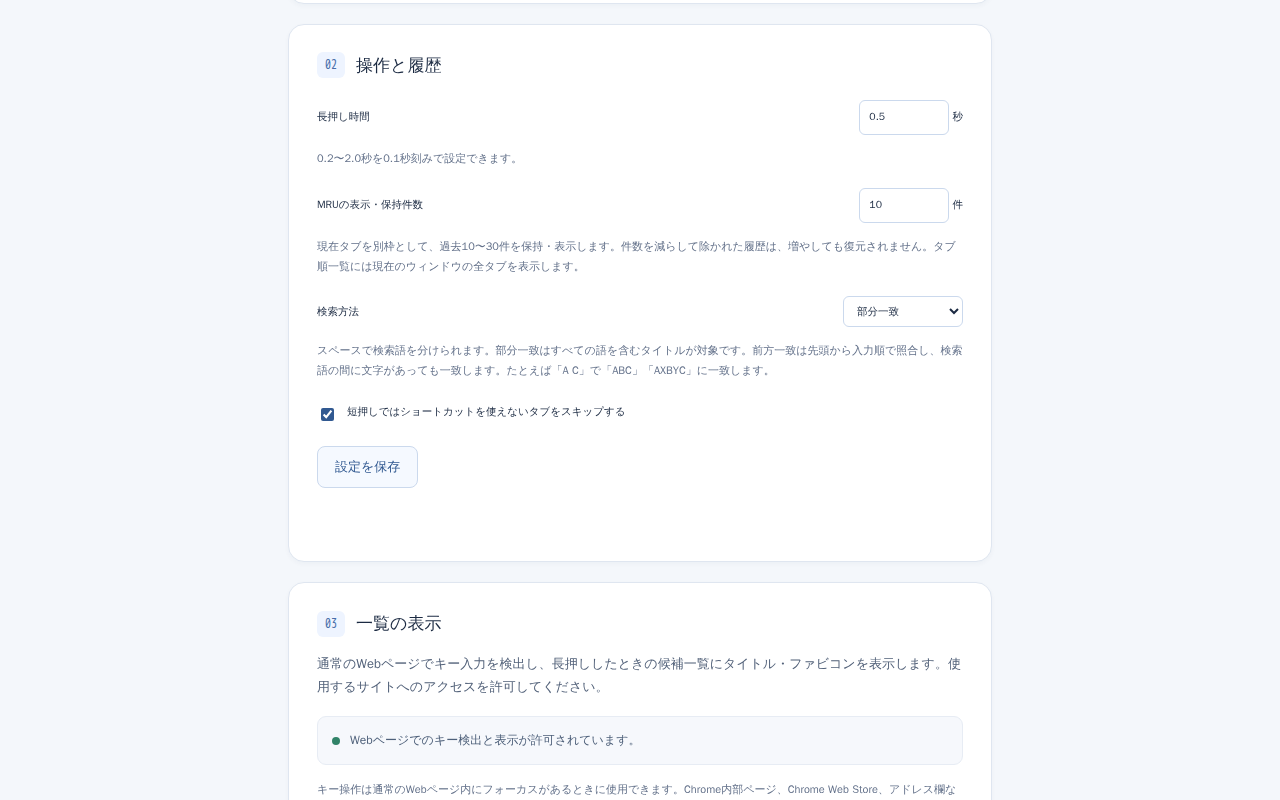
| Japanese settings | options-1280x800.png, 1280×800, Default hold duration of 0.5 seconds and search matching settings |
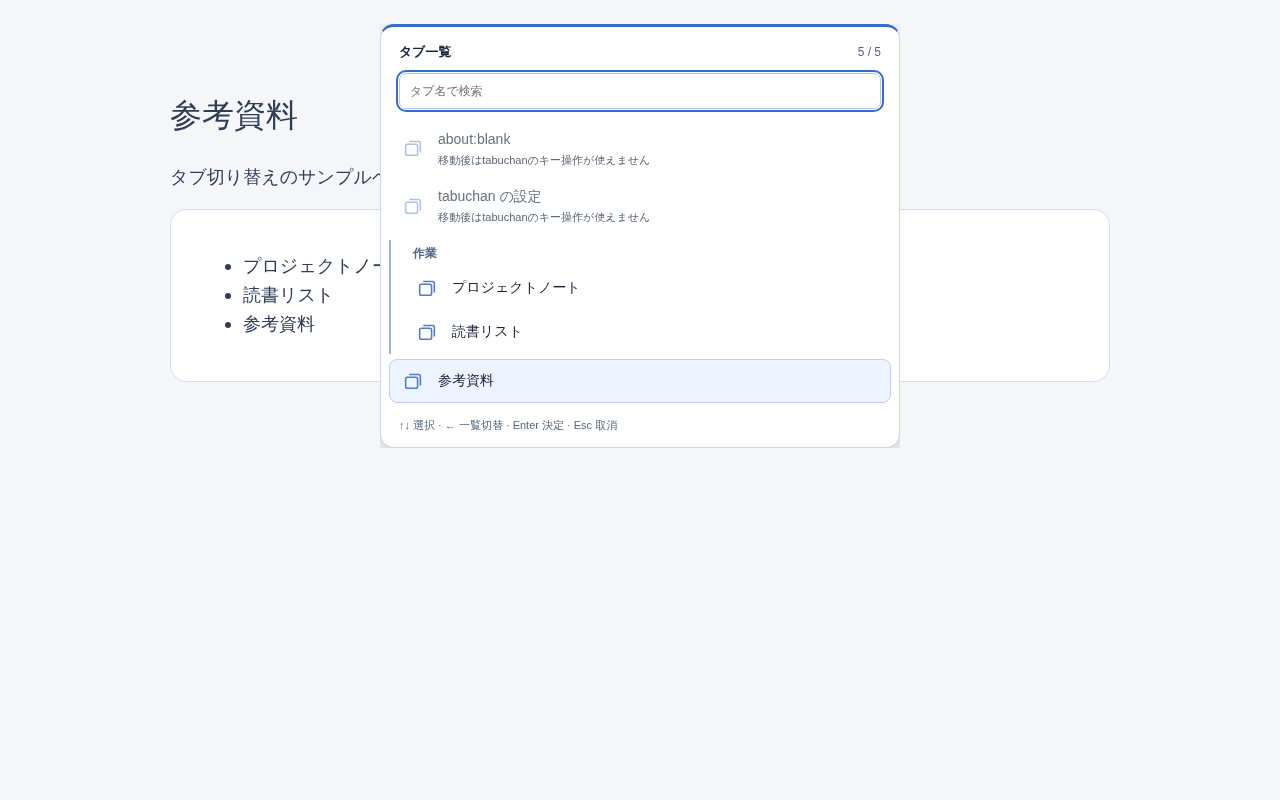
| Japanese tab list | picker-1280x800.png, 1280×800, Japanese tab order with sample groups |
The four 1280×800 screenshots show the same bilingual package on Chrome for Testing Stable 158.0.8127.36 (Linux arm64), using Japanese and English Chrome UI locales. The tab lists use sample tabs.
No account or login is required. Visit several regular HTTP(S) tabs in one window. Keep the modifiers held and tap the regular keys for Back and Forward. Release a required modifier and verify that the displayed tab becomes the most recent. Hold the whole shortcut for at least 0.5 seconds to open the list. Press Left to switch to tab order, filter by title, and confirm with Enter. Use the toolbar icon to open settings and check version 0.2.1.
See the release record for verification of the current distribution.
Listing fields and image requirements were checked against official documentation on November 9, 2026. Recheck the Dashboard’s current required fields before submission: Store listing, Supplying Images.